FPV Drone Flight Controllers: Troubleshooting & Triumphs
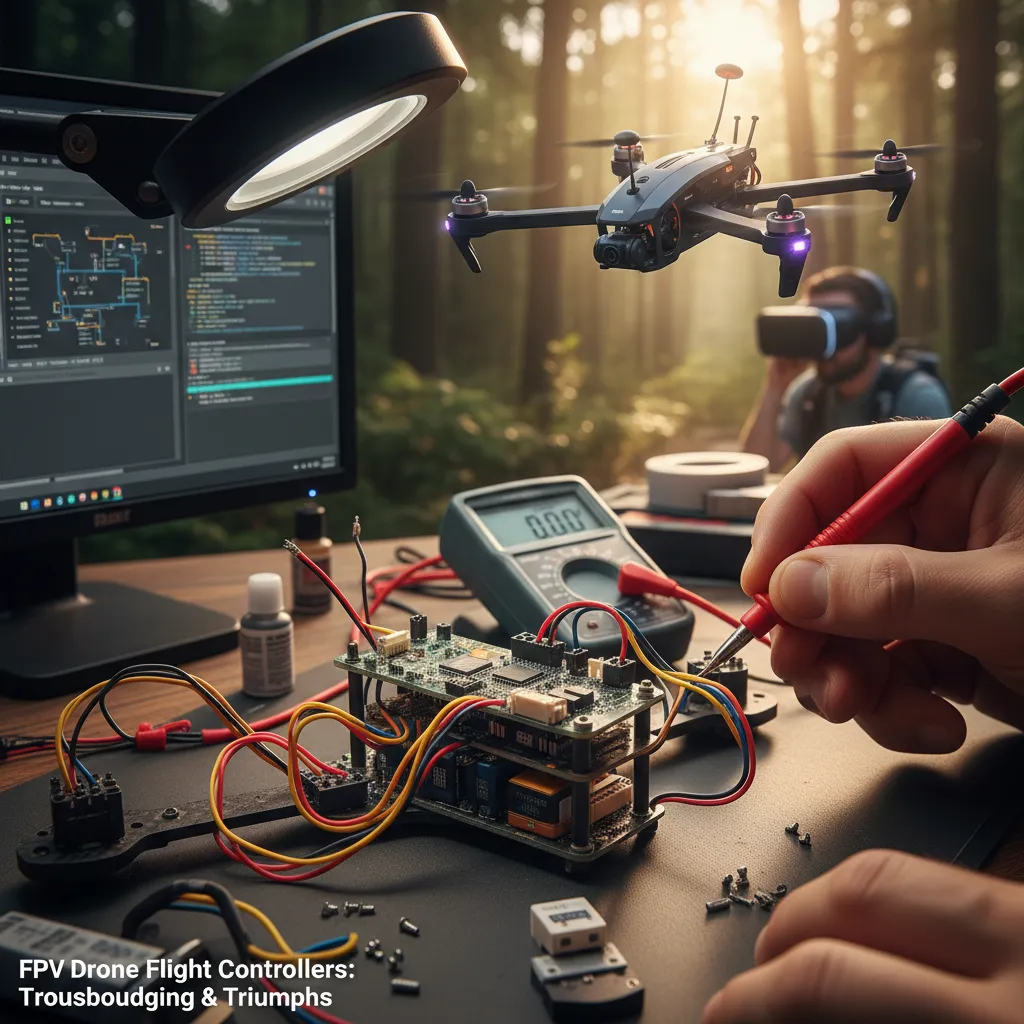
Starting my FPV drone journey was like stepping into a maze of blinking lights and cryptic errors. My earliest struggles with connecting flight controllers to Betaflight Configurator taught me valuable lessons about drivers, cables, and the quirks lurking in USB ports. From flustered beginner mishaps to becoming a trusted resource for thousands, this story is about persistence, community wisdom, and the small victories that make drones soar.
TL;DR: Connecting FPV drone flight controllers often trips over driver and USB issues, but with patience, tools like ImpulseRC Driver Fixer, Speedybee app, and community advice, even the trickiest errors are conquerable.
Decoding Flight Controller Drivers: The STM32 vs AT32 Challenge
My journey into FPV drone flight controller troubleshooting quickly revealed one universal truth: driver issues are the root cause of nearly all connection errors in Betaflight. With over 21,800 readers sharing their struggles, I learned that understanding the differences between STM32 drivers and AT32 flight controllers is the key to unlocking smooth firmware updates and reliable connections.
STM32 Flight Controllers: The VCP and DFU Dance
Every STM32-based flight controller relies on two essential drivers:
- VCP (Virtual COM Port) driver: This is what lets your computer recognize the FC as a COM port (like COM3) for normal configuration in Betaflight Configurator. Most of the time, Windows installs this automatically, but sometimes you’ll see “Unknown Device” or “USB Serial Device” in Device Manager—a sure sign the VCP driver is missing.
- DFU (Device Firmware Upgrade) driver: Needed for flashing new Betaflight firmware. When your FC is in bootloader mode, it should show up as “STM32 BOOTLOADER” in Device Manager and “DFU” in Betaflight Configurator. Without the right DFU driver, firmware flashing simply won’t work.
The most common STM32 error I’ve faced is “Failed to open serial port”. Sometimes, it’s as simple as a bad USB cable or a rogue app (like BLHeli Configurator) hogging the port. Other times, it’s a missing driver. My go-to fix? The ImpulseRC Driver Fixer—a lifesaver for STM32 driver headaches. But it only works for STM32, not AT32.
AT32 Flight Controllers: New Chips, New Challenges
When AT32 flight controllers hit the scene, I had to learn a new set of tricks. While Windows sometimes auto-installs the AT32 Virtual COM Port driver, many times I had to manually download and install the “Virtual serial port composite PC driver” from Artery’s MCU page. For DFU mode, flashing firmware required running the “Artery_DFU_DriverInstall” tool, found in Artery’s In-System-Programming package.
A crucial lesson: ImpulseRC Driver Fixer does not support AT32. I wasted hours before realizing this, and manual installation became my new normal for AT32 boards. As one experienced FPV pilot put it:
‘‘Patience and understanding the driver differences saved me countless hours troubleshooting.’’
Common Driver Pitfalls and Solutions
- STM32: If Device Manager shows “Unknown Device,” install the official VCP driver from STMicroelectronics. For persistent DFU issues, check for rogue drivers like Guillemot and remove them fully.
- AT32: If Windows doesn’t recognize your FC, manually install both the Virtual COM Port and DFU drivers from Artery’s site. Remember, ImpulseRC won’t help here.
- General: Always use a true data USB cable, unplug all UART peripherals (like receivers and VTXs), and close all other apps before connecting.
Driver mismatches or missing drivers are the invisible gremlins behind most Betaflight connection failures. Whether you’re battling STM32 or AT32 quirks, knowing which tools and drivers to use—and when—makes all the difference in successful flight controller troubleshooting.
USB Connections & Serial Port Woes: Tales from the Trenches
My journey into FPV drone troubleshooting began with what seemed like a simple task: connect the flight controller (FC) to Betaflight Configurator via USB. But as any seasoned pilot will tell you, USB connection issues and serial port errors are the true gatekeepers of this hobby. Over the years, I’ve seen the same problems crop up for myself and thousands of others—sometimes with a twist, always with a lesson.
When Software Steals the Serial Port
The most common culprit behind the dreaded “Failed to open serial port” error is not always the hardware, but software quietly running in the background. Programs like BLHeli Configurator, INAV, or even a rogue browser tab can seize the COM port, blocking Betaflight or INAV from accessing your FC. My first line of defense is always to close every app, unplug the FC, and reboot the computer. If that fails, switching to another computer often works wonders.
| Issue | Common Cause | Resolution |
|---|---|---|
| Failed to open serial port | Software or browser tab using COM port | Close all apps, reboot, or switch computers |
| Unknown Device/USB Serial Device | Missing or wrong driver | Install correct VCP/DFU driver |
| Unexpected Number of Devices Detected | UART peripherals (receiver, GPS) connected | Unplug all UART devices, try again |
| No connection | Power-only USB cable | Replace with data-capable cable |
USB Cables: The Hidden Villain
I can’t count how many times a bad USB cable masqueraded as a complex driver issue. Power-only cables—those meant just for charging—lack the data lines needed for communication. The fix? Always use a known-good, data-capable cable. As one fellow builder put it:
“A lousy USB cable was the last thing I suspected, but switching it fixed everything instantly.” – Drone Builder
UART Configuration and Peripheral Pitfalls
Another sneaky source of trouble is UART configuration and connected peripherals. Receivers, GPS modules, and DJI Air Units plugged into UART ports can block DFU mode or trigger errors like “Unexpected Number of Devices Detected.” I learned to always disconnect all UART devices before flashing firmware or troubleshooting a stubborn connection.
Quick Troubleshooting Checklist
- Close all apps that might use the COM port
- Try a different, data-capable USB cable
- Check Windows Device Manager for correct driver names
- Unplug all accessories from UART ports
- Reboot or switch computers if issues persist
In my experience, nine out of ten USB connection issues boil down to these basics. Whether it’s a sneaky software conflict, a bad cable, or a UART peripheral in the wrong place at the wrong time, patience and methodical troubleshooting are your best allies. Each solved problem is a small triumph—and a new story to share.
Cross-Platform Driver Battles: Windows, macOS, and Mobile Workarounds
My journey with FPV drone flight controller troubleshooting has been a wild ride across Windows, macOS, and even mobile devices. Each platform brings its own set of USB connection issues and driver conflicts, and I’ve learned that no two operating systems play by the same rules. Here’s how I’ve navigated these digital minefields, and the workarounds that finally got my drones flying again.
Windows: The Stubborn Guillemot Driver and Serial Port Woes
On Windows, the most persistent enemy has been the infamous Guillemot driver conflict. If you see “Guillemot STM DFU Device” in Device Manager when trying to flash firmware, you’re in for a battle. Windows loves to automatically reinstall this problematic driver, sabotaging your attempts to connect your flight controller in DFU mode. The only way I’ve found to win is a complete removal:
- Delete
C:\Program Files\GuillemotandC:\Program Files (x86)\Guillemotfolders. - Uninstall the device from Device Manager, making sure to check “Delete the driver software for this device.”
- Reboot before plugging your FC back in.
Without these steps, Windows will stubbornly reinstall the wrong driver every time. Once cleared, tools like ImpulseRC Driver Fixer or manual installation of the STM32 VCP or DFU drivers usually get things back on track. But don’t forget: a bad USB cable or another app (like BLHeli Configurator) can also block the COM port, so always check your connections and close other programs.
macOS: Security Hurdles and Driver Approvals
On macOS, the challenge shifts from forced reinstalls to security permissions. Installing the CP210x driver (essential for some FCs) means jumping through Apple’s security hoops. As one Mac FPV pilot put it:
“Jumping through macOS hoops to get the CP210x driver to stick was frustrating but rewarding.”
After running the installer, you’ll need to:
- Open System Preferences > Security & Privacy.
- Click “Allow” next to the SiLabs driver warning.
- Restart your Mac—sometimes more than once.
With every macOS update, these steps often repeat. It’s tedious, but necessary for Betaflight Configurator to recognize your FC. If you see “No serial ports found,” double-check that you’ve approved the driver and try another restart.
Mobile Workarounds: Speedybee App to the Rescue
When all else fails—be it a stubborn PC, a damaged USB port, or a Mac that just won’t cooperate—the Speedybee app has saved the day. Using an Android phone with an OTG cable or a Speedybee Adapter 3 over Wi-Fi, I’ve been able to configure and flash firmware just like on desktop. This mobile solution is a game-changer, especially for those facing elusive serial ports on Apple Silicon or when traveling without a laptop.
- Connect your FC via OTG cable or Wi-Fi adapter.
- Open the Speedybee app and follow the prompts for flashing or configuration.
These mobile workarounds have bridged the gap when traditional methods failed, making flight controller troubleshooting more accessible than ever.
Community Wisdom & Unexpected Fixes: The Human Side of Drone Troubleshooting
If there’s one thing my years of flight controller troubleshooting have taught me, it’s that the FPV community is the real engine behind every successful drone repair. Manuals and official guides can only take you so far. The rest? That’s where the collective wisdom, quirky fixes, and shared stories of fellow pilots come in—often making the difference between a grounded quad and a triumphant flight.
Since I started sharing my journey in November 2025, over 21,800 readers have joined me in wrestling with the same stubborn errors: the dreaded “Failed to open serial port,” mysterious Guillemot driver conflicts, and the ever-present challenge of getting Betaflight Configurator to recognize a flight controller. Through it all, the most valuable solutions have rarely come from official documentation. Instead, they’ve emerged from the trenches—comment threads, late-night chats, and the kind of troubleshooting that only happens when you’re desperate to get your drone back in the air.
Some of the most unexpected fixes have become almost legendary. Unplugging a Walksnail VTX or even desoldering a single wire to force DFU mode—these aren’t steps you’ll find in any manual, but they’ve saved countless firmware flashes. I’ll never forget the tip about powering off an ELRS controller to resolve connection issues with ImpulseRC Driver Fixer; it was so simple, yet so effective. Each time someone shared a story about bricking an AIO board on a Mac or finally conquering unknown device errors by leaving the quirky Guillemot driver alone, our collective knowledge grew richer.
“The collective stories from other pilots turned out to be my best resource.” – FPV Enthusiast
What makes the FPV community so powerful is its diversity—not just in the range of flight controllers (from Naze32 to Speedybee F405 and AT32 boards), but in the creative approaches to drone maintenance and firmware flash problems. When traditional fixes failed, it was often a community-contributed hack—like switching to a different USB cable, unplugging all peripherals, or even moving to a mobile platform with the Speedybee app—that finally broke the stalemate. These stories didn’t just solve technical problems; they inspired perseverance and reminded me that every drone pilot faces their own unique set of challenges.
Of course, not every problem can be solved with software. Physical damage—broken USB ports, fried boards after a crash—sometimes means accepting defeat or moving on to a new FC. But even then, the community’s support and encouragement make it easier to keep going. The willingness to share both failures and triumphs is what keeps the FPV world spinning.
In the end, flight controller troubleshooting isn’t just about drivers, COM ports, or firmware. It’s about people—pilots who refuse to give up, who share their hard-won fixes, and who celebrate every small victory together. Every time my quad lifts off after a stubborn repair, I’m reminded that I’m not flying alone. Thanks to the FPV community, every arming problem solved and every firmware flashed is a shared triumph, proving that together, we can overcome even the most unexpected obstacles.


